You edit a page in WordPress, press Update and open the site. The old text is still there. You try a private window, then your phone. Still the old version. Inside the editor everything looks right, so it feels like the website is ignoring you.
It almost never is. Somewhere between your editor and your visitors there is a cache that stored the previous version of the page and keeps serving it until it expires or someone tells it to let go. On a modern WordPress or WooCommerce site there can be four or five of those caches, and each one is cleared in a different way.
Below are the layers in the order a request meets them, how to tell which one is holding your page, and the setup we use so saved changes go live on their own.
Why websites cache pages at all
Building a WordPress page means running PHP and several database queries. On a busy shop that can take a few hundred milliseconds per request. A cache stores the finished HTML and hands the same copy to the next visitor in a few milliseconds, which is why a cached site feels fast and survives traffic spikes.
The trade off is freshness. A cache that keeps pages for a week is very fast and, unless something purges it, a week out of date. Good setups keep the long lifetime and purge exactly the pages that changed, at the moment they change.
The layers between your editor and your visitors
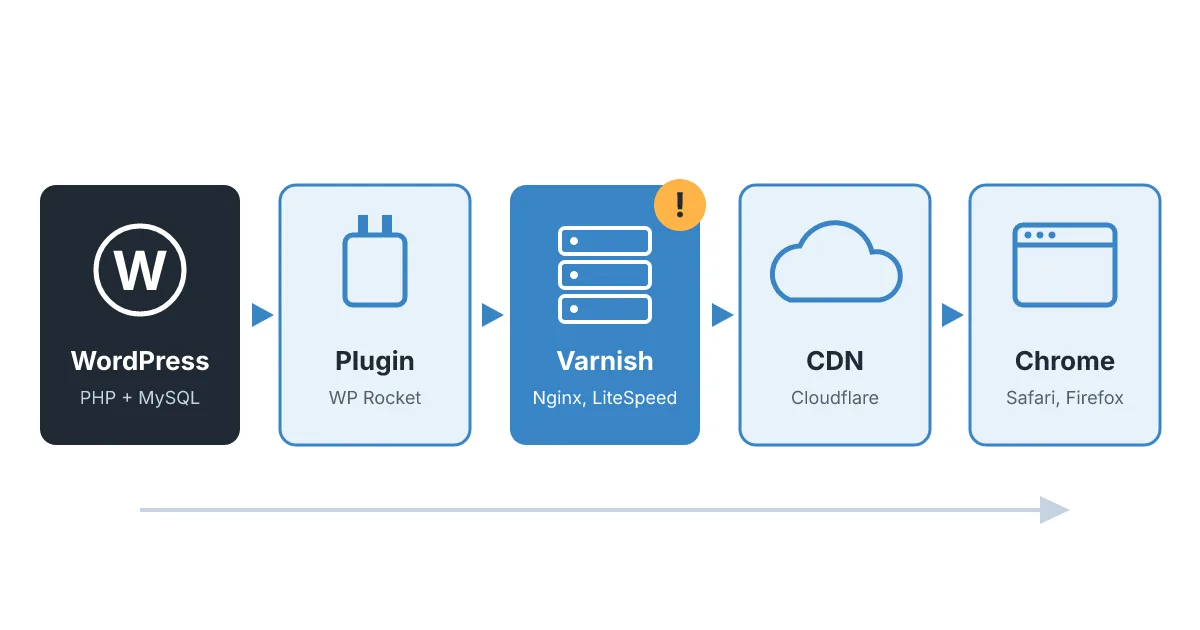
1. The visitor's browser
Browsers keep images, CSS and JavaScript, and sometimes HTML, according to the headers the server sends. This layer only affects people who have visited before, which is why "it looks fine in a private window" is a useful first test.
2. The CDN
Services like Cloudflare sit in front of the server and cache files at data centres close to the visitor. By default Cloudflare does not cache HTML, only static files such as images, CSS and JavaScript. If your page text is stale and nobody added a "cache everything" rule, the CDN is probably not the culprit. If there is such a rule, it is a prime suspect.
3. The server cache (Varnish, Nginx, LiteSpeed)
Many hosting panels put a full page cache in front of PHP. CloudPanel, for example, ships with Varnish Cache and a configurable cache lifetime that in the installations we work with is set to seven days. This is the layer behind most "my change does not show" reports we see, for two reasons:
- It needs an explicit purge. Varnish keeps the stored page until its lifetime ends or it receives a PURGE request. In the version of the CloudPanel WordPress plugin we reviewed in September 2026 (1.1.1), purges ran on plugin and core updates and theme switches, but not when a page, product or page builder block was saved.
- It may serve a stale copy once more. With grace mode, the first visitor after expiry can still get the old page while Varnish fetches the new one in the background. The second request gets the fresh version.
There is a second trap on multilingual or non English sites: the panel's list of excluded paths uses English slugs such as /my-account/ and /cart/. A Spanish shop with /mi-cuenta/ or /carrito/ needs those paths added by hand, or personal pages end up in the shared cache.
4. WordPress page cache plugins
Plugins such as LiteSpeed Cache, WP Rocket or W3 Total Cache write their own copy of each page. Most of them purge on save, but they only know about the content they manage. When a site moves to a server where another layer (Varnish, for instance) is in charge, the plugin's purge instructions may simply go nowhere.
5. Object cache and theme or builder caches
Redis or Memcached store database results, and some themes and page builders keep their own compiled CSS or fragments. These rarely hide a text change for long, but they explain why a style change sometimes needs a "regenerate CSS" button.
Find the layer holding your page
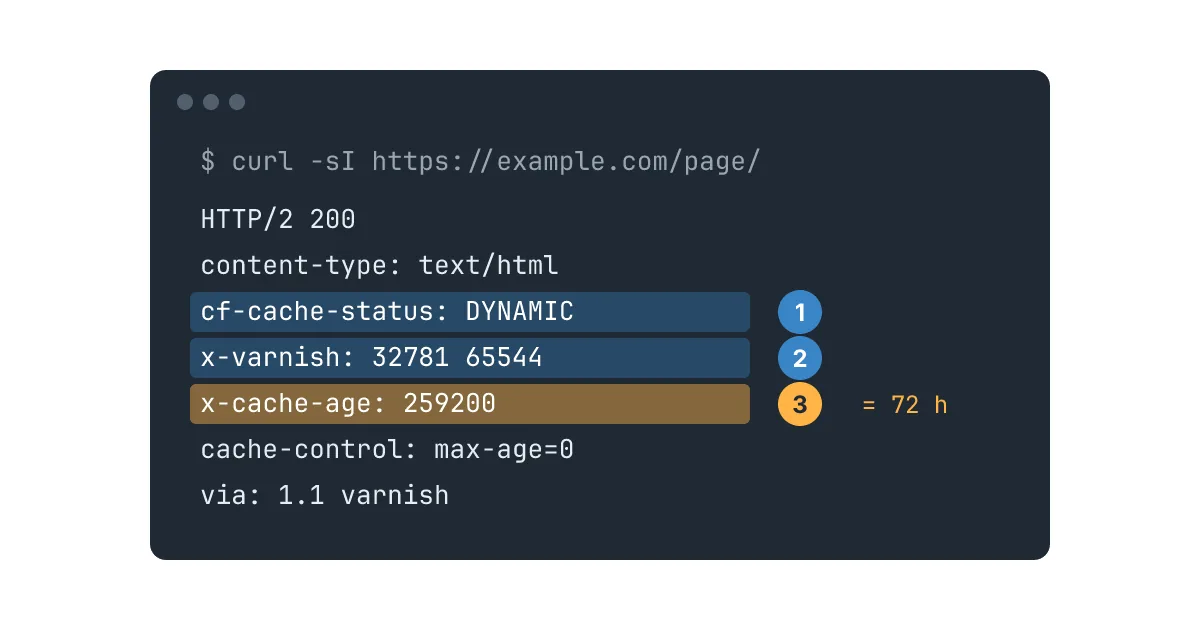
You do not need server access to narrow it down. The response headers tell you who answered and how old the copy is. Open the page, press F12, go to the Network tab, reload, click the first request and read the response headers. From a terminal, curl -sI https://yoursite.com/page/ shows the same information.
| Header | What it tells you |
|---|---|
cf-cache-status | HIT means Cloudflare served its copy. DYNAMIC means it passed the request through and did not cache the HTML. |
age or x-cache-age | Seconds since the copy was stored. If it is larger than the time since you saved, you are looking at the old version. See the Age header reference. |
x-varnish, via | Varnish or another proxy took part in the response. |
x-litespeed-cache, x-cache | A plugin or server cache answered, with hit or miss. |
cache-control | How long browsers and shared caches are allowed to keep the page. |
A quick reading: if cf-cache-status is DYNAMIC and the age is measured in hours or days, the CDN is fine and the server cache is holding the page.
Fix it now, then fix it for good
Right now
- Purge the server cache for the site from the hosting panel. In CloudPanel this is the Purge Cache option in the site's Varnish settings, which you can also limit to a single URL.
- Purge the WordPress cache plugin, if there is one.
- Purge the CDN only if it caches HTML. Purging static files you did not change only makes the next visitors slower.
- Reload twice and check the age header again. Because of grace mode, the first reload may still show the old page.
For good
Manual purges are fine once. As a routine they mean that whoever edits the site has to remember a step nobody told them about. A better setup purges automatically when content changes. On the WordPress and WooCommerce sites we maintain, we add a small must use plugin that sends the purge whenever something visible changes:
- publishing, editing or unpublishing pages, posts and products
- page builder blocks that are reused inside other pages, such as footers
- menus, Customizer settings, categories and tags
- stock changes and newly approved reviews
Two details matter. The purge runs once at the end of the request, so a bulk edit does not fire a hundred purges. And it never runs on new orders or drafts, which change nothing a visitor sees. Content that changes on a schedule, like opening hours or event lists, gets a shorter lifetime for just that page or fragment instead of shortening the cache for the whole site.
Pages stay cached for days, and an edit reaches every visitor a few seconds after you press Update.
Quick checklist
- The change looks right in the editor but not on the site: check the
ageheader before anything else. - Know which cache layers your site has. If nobody can list them, that is the first task.
- Make sure purges happen on content saves, not only on plugin updates.
- Check the cache exclusions match your real URLs, especially account, cart and checkout pages in other languages.
- After moving to a new server, confirm the old cache plugin still has something to talk to.
Caching problems are part of the performance and maintenance work we do on WordPress sites and online shops.
Changes still not showing?
Tell us the address of the page and what you changed. We will find the layer holding it and set up purging so the next edit goes live on its own.